

Set fireflow
Choose the Graph Setup tab. The empty workspace will appear.
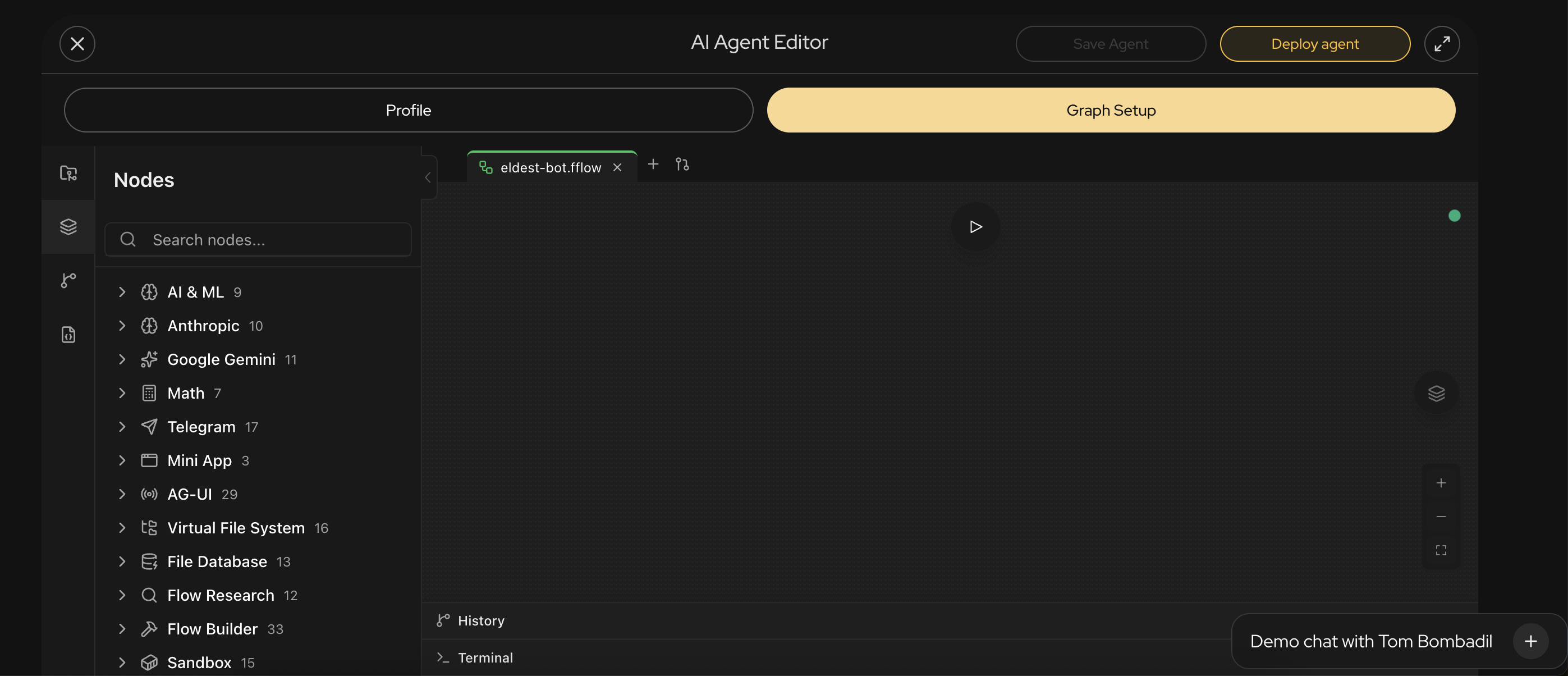
Now, drag the nodes from the left sidebar to build your first flow.
The simplest flow is to get a message, process it with LLM and send a response. Let's build it together.
We can get the message from the node AG-UI Run Listener. It's the trigger for the flow: whenever a new message from a user arrives, it fires and exposes all chat-related details. Read events.md and flow-control.md for better understanding of how flows and events work in Fireflow.
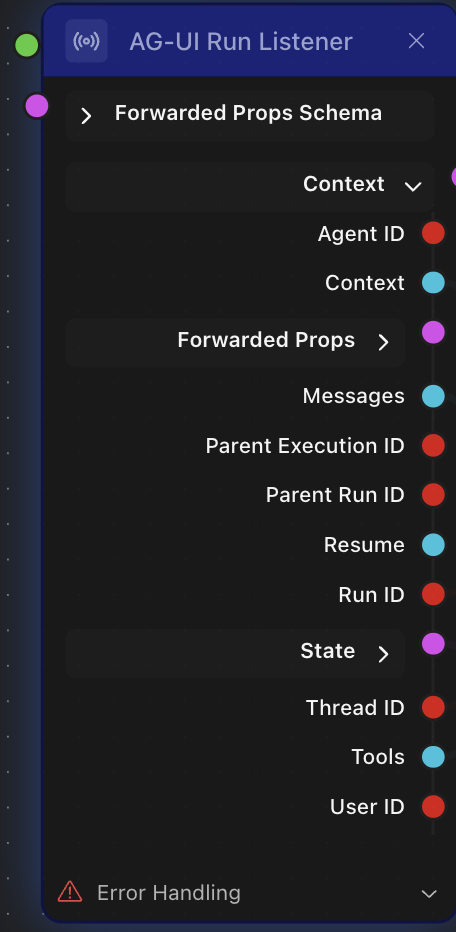
You do not need to connect every port, only the ones your flow actually uses. For this example we'll use Messages and User ID.
Now let's set up the Handlebars Template node. It's used to assemble one piece of text (i.e. a prompt) out of several inputs coming from different nodes. You feed it named variables, and reference them inside the template field with double curly braces: {{variable_name}}.
For our example, we'll combine 2 different kinds of data:
- Current time from the Server Time node (Formatted Time port)
- The current user, from AG-UI Run Listener (User ID port)
Connect both into Handlebars Template as variables time and userId and then reference them in the template:
Current time: {{ time }}

You are Tom Bombadil, a friendly assistant for user {{ userId }}.
Always start your reply with two things, in your own whimsical way:
1. a mention of the current time (e.g. "Ah, tis {{ time }}, a fine hour for riddles!")
2. a greeting addressed to the user by their id, {{ userId }}
Then read the user's message and answer in your manner with funny rhymes and songs.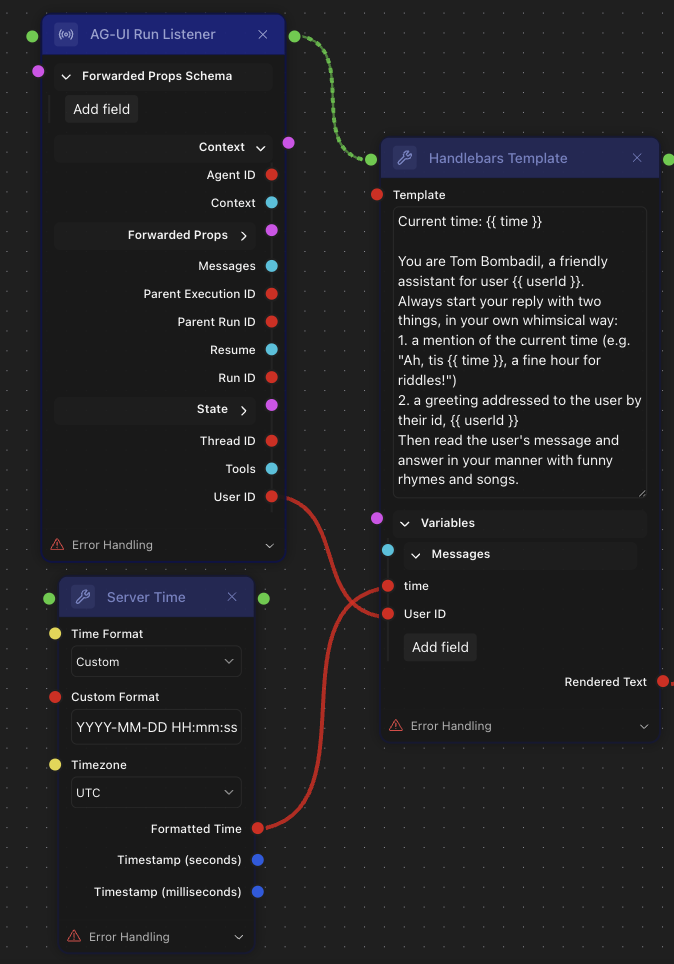
Every variable you connect should actually appear in the template text as {{ ... }}. A connected but unused input just clutters the node and makes the flow harder to read. If you drag in a variable and end up not needing it, disconnect and remove that port.
Now we'll need to route our Messages through the AG-UI Messages node to convert them to LLM Messages for the LLM Call with Tools node. The Rendered Text port from Handlebars Template should also be connected to the System Prompt port of the LLM Call with Tools node.
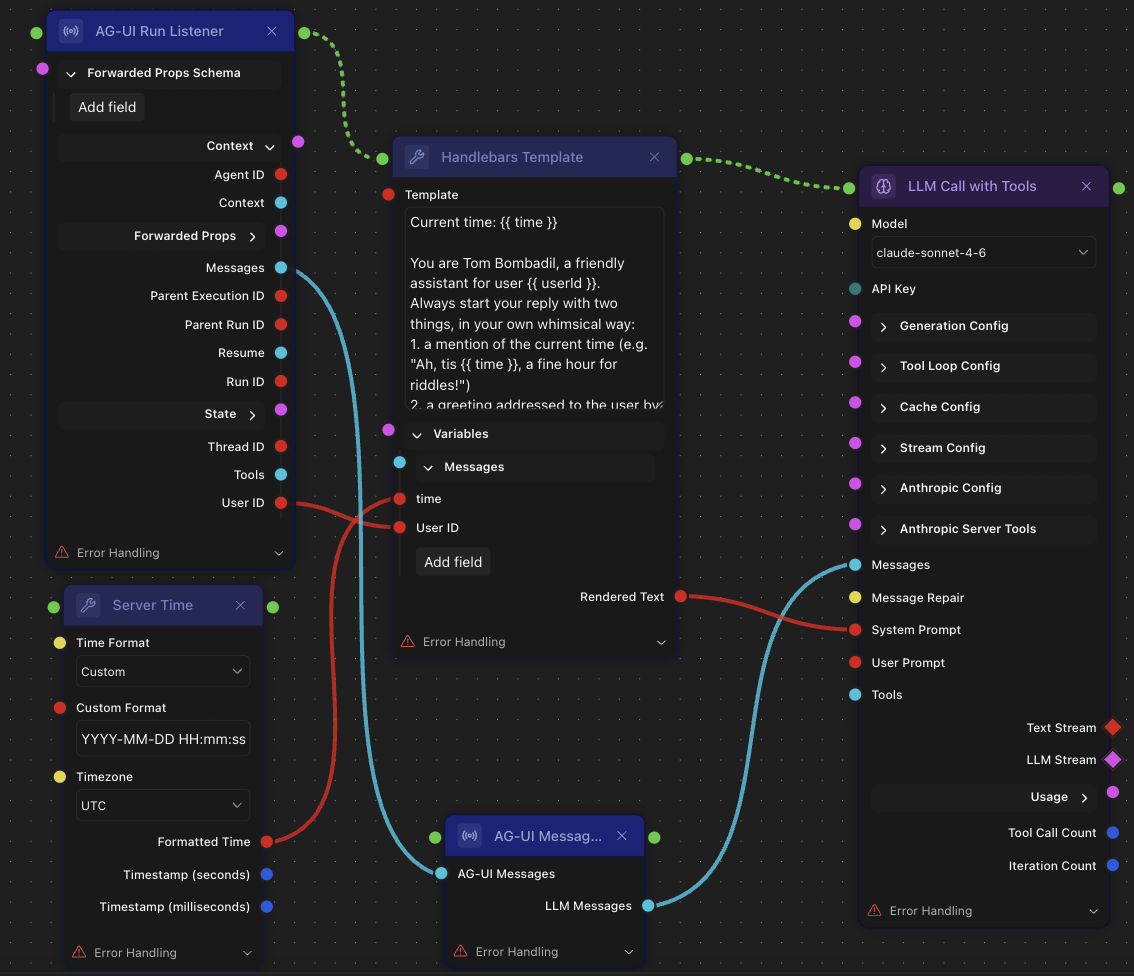
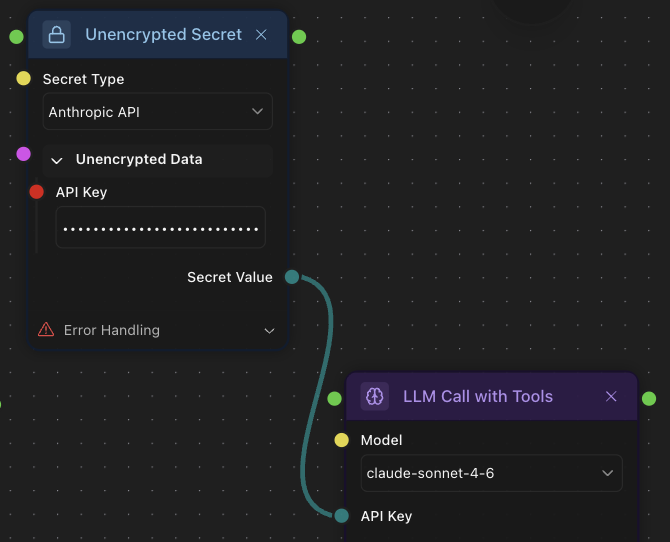
Pick a model from the Model dropdown and add a corresponding API key using the Unencrypted Secret node.
Now let's stream the response back to the chat. LLM → AG-UI takes LLM Stream and produces an AG-UI Event Stream. AG-UI Stream Emitter takes that AG-UI Event Stream and streams it into the chat.
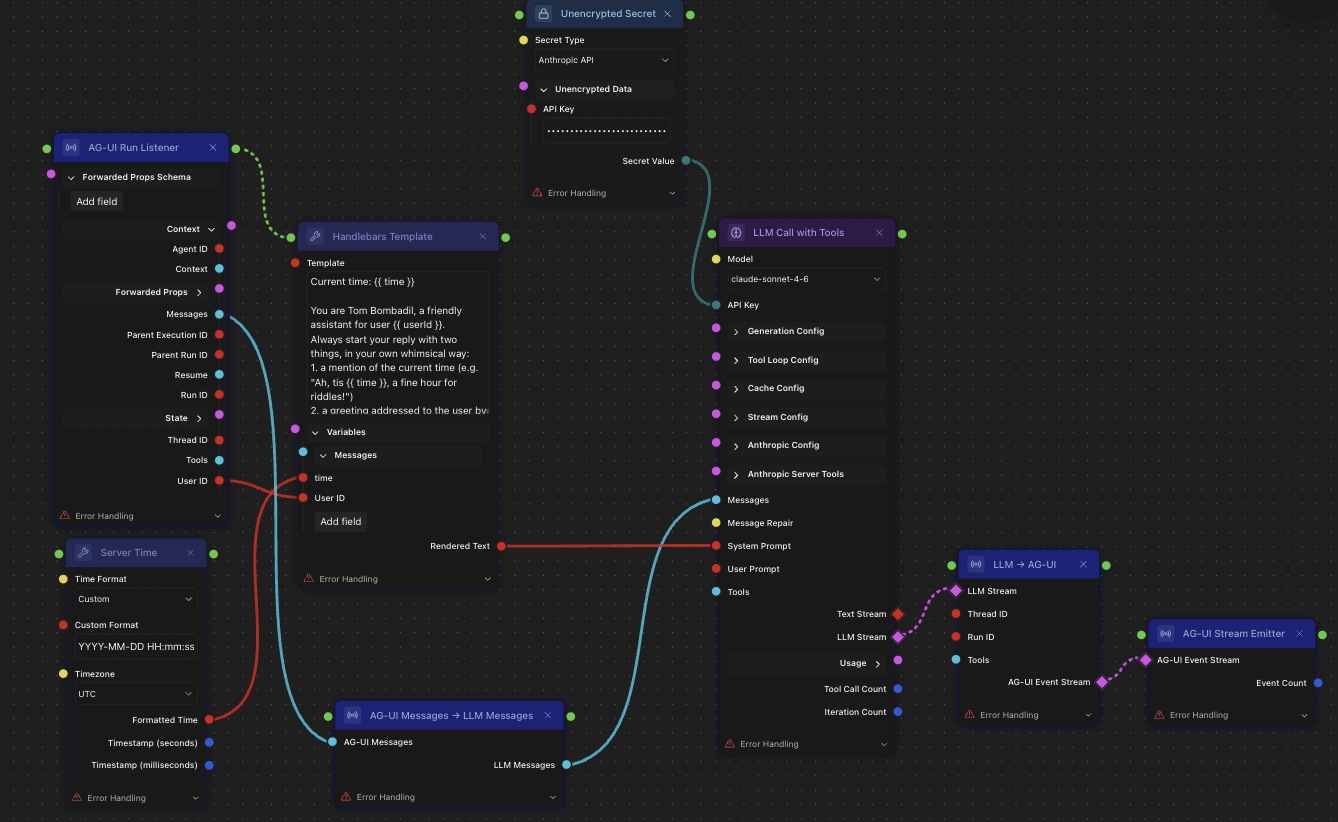
The job is completed here. The agent receives a message, passes it to the LLM together with a prompt and streams LLM response. It's time to test-and-deploy.md.